Welcome to JobTrace OS. This guide walks you through setting up your account, importing your existing jobs, and running your first job through the system. Most shops are fully set up within an afternoon.
Step 1 — Create your account
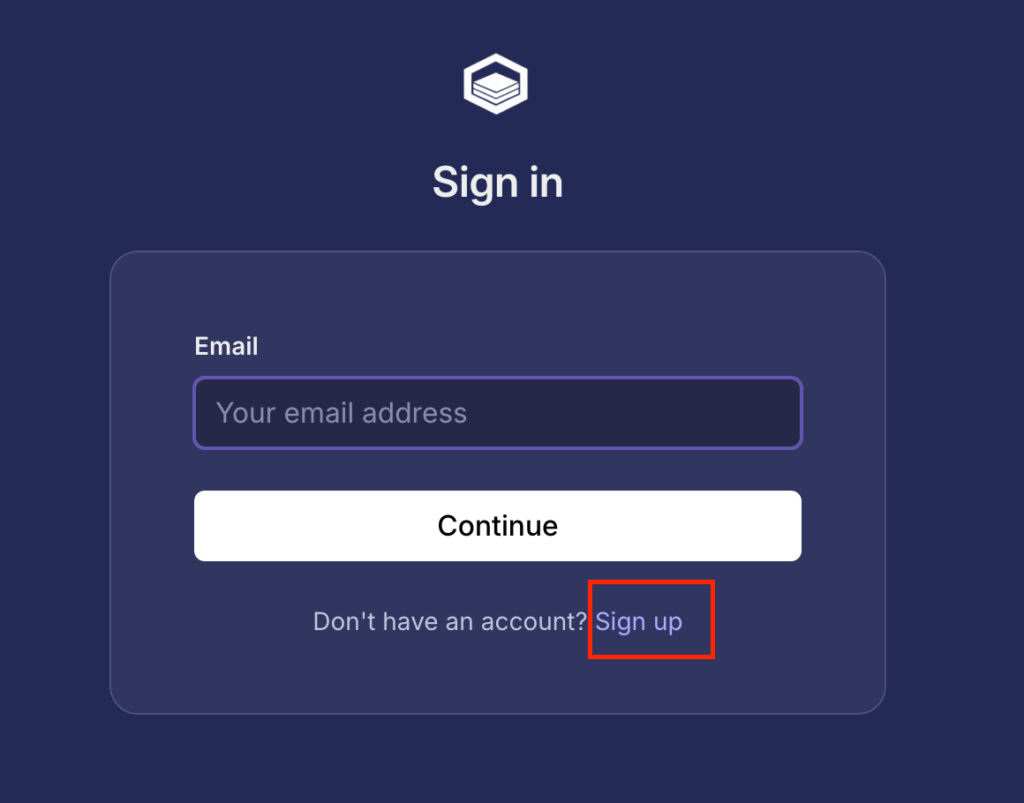
Go to https://portal.getjobtrace.com/signup and sign up with your work email. You'll receive a verification email, click the link to confirm your address and log in.
▎ Your 30-day free trial starts automatically. No credit card is required until your trial ends.
Step 2 — Set up your company
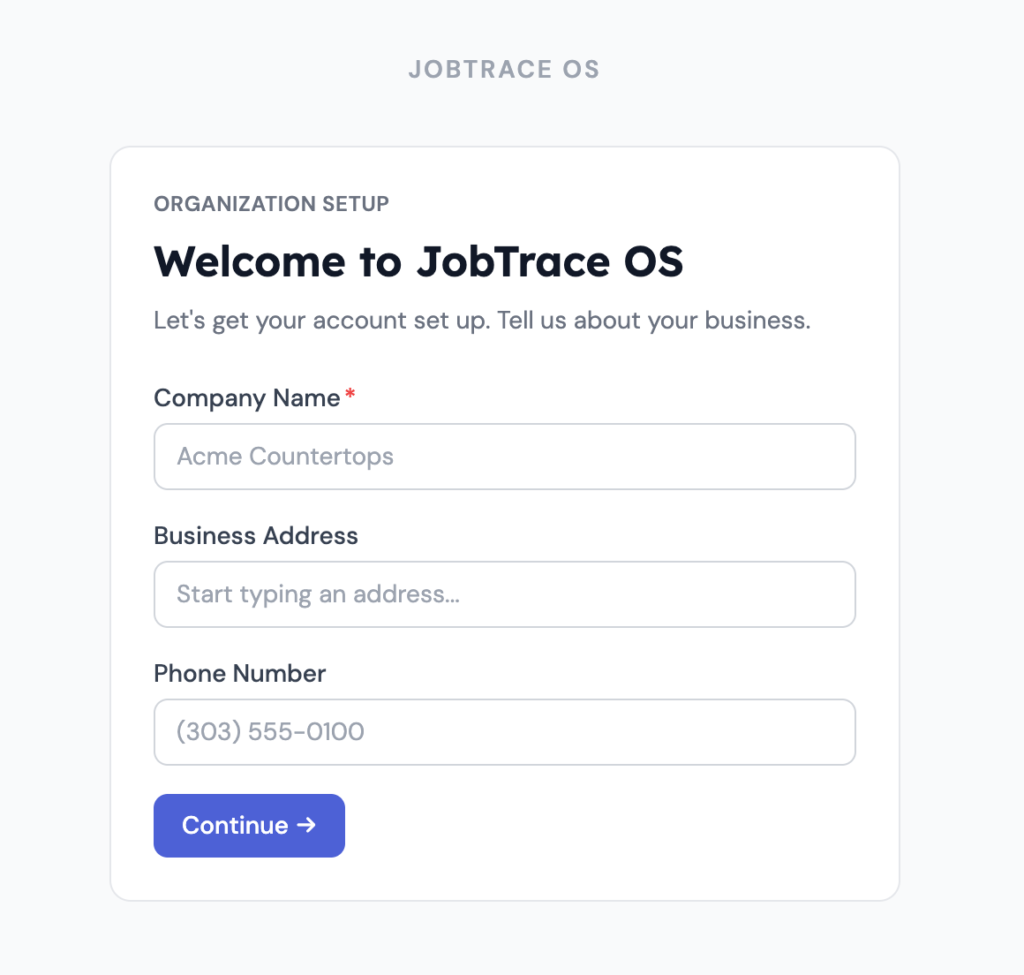
The first screen asks for your company info:
- Company Name — this appears on work orders and emails sent to subcontractors and suppliers (required)
- Business Address — used to pre-fill your shop address when needed (optional)
- Phone Number (optional) Click Continue when done. You'll be taken into the setup wizard.
Step 3 — Add your subcontractors (Step 1 of 5)
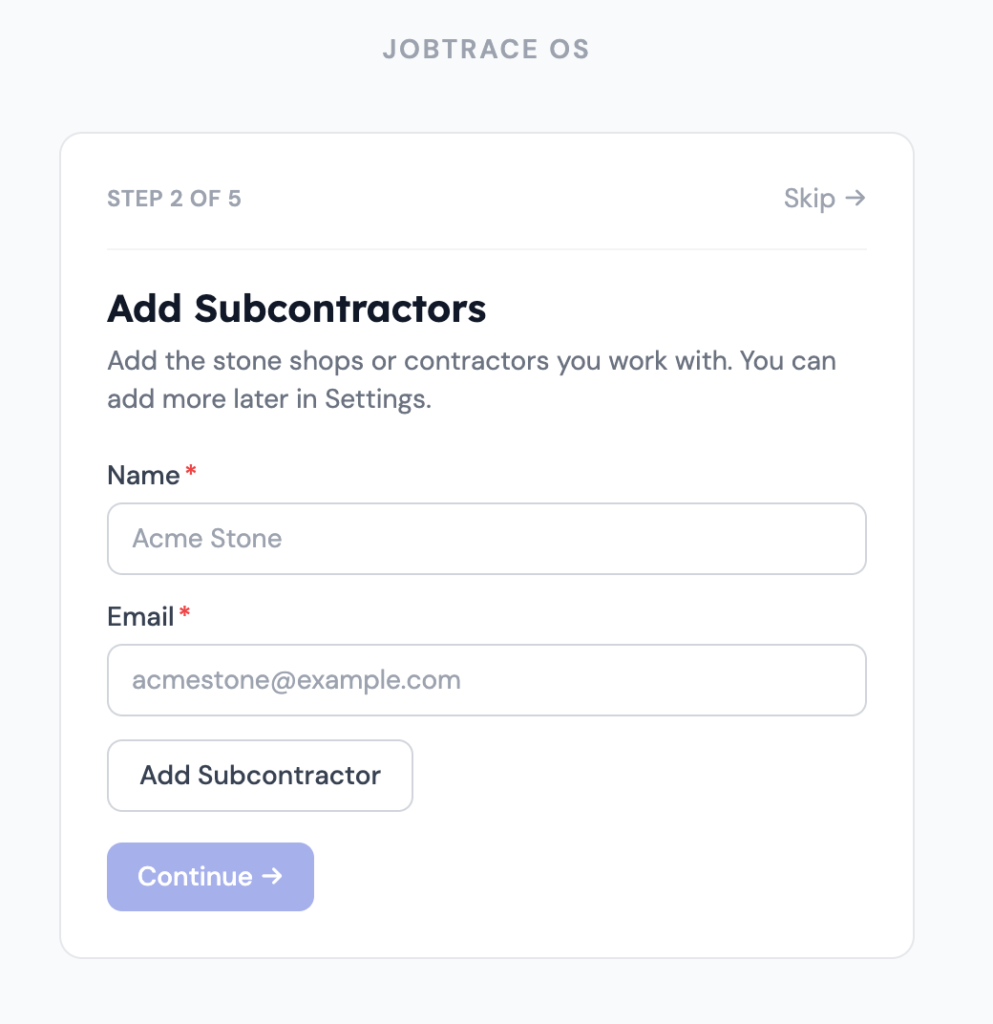
Subcontractors are the stone shops or installers you send work to. JobTrace OS needs them in the system before you can assign them to jobs or send work orders.
▎If you handle all install in-house, you can skip this step.
For each subcontractor, enter:
- Name — the company or person name
- Email — where work order emails will be sent Click Add Subcontractor after each one. They'll appear in a list below the form. When you've added all your subcontractors, click Continue.
▎ Tip: You can always add more subcontractors later in Settings → Subcontractors. Material deliveries sub-step: If any of your subcontractors receive material deliveries at their shop rather than the jobsite, toggle Yes on the next screen and enter their delivery address and phone number for each one.
This information gets included on hold requests sent to your suppliers.
Step 4 — Add your suppliers (Step 2 of 5)
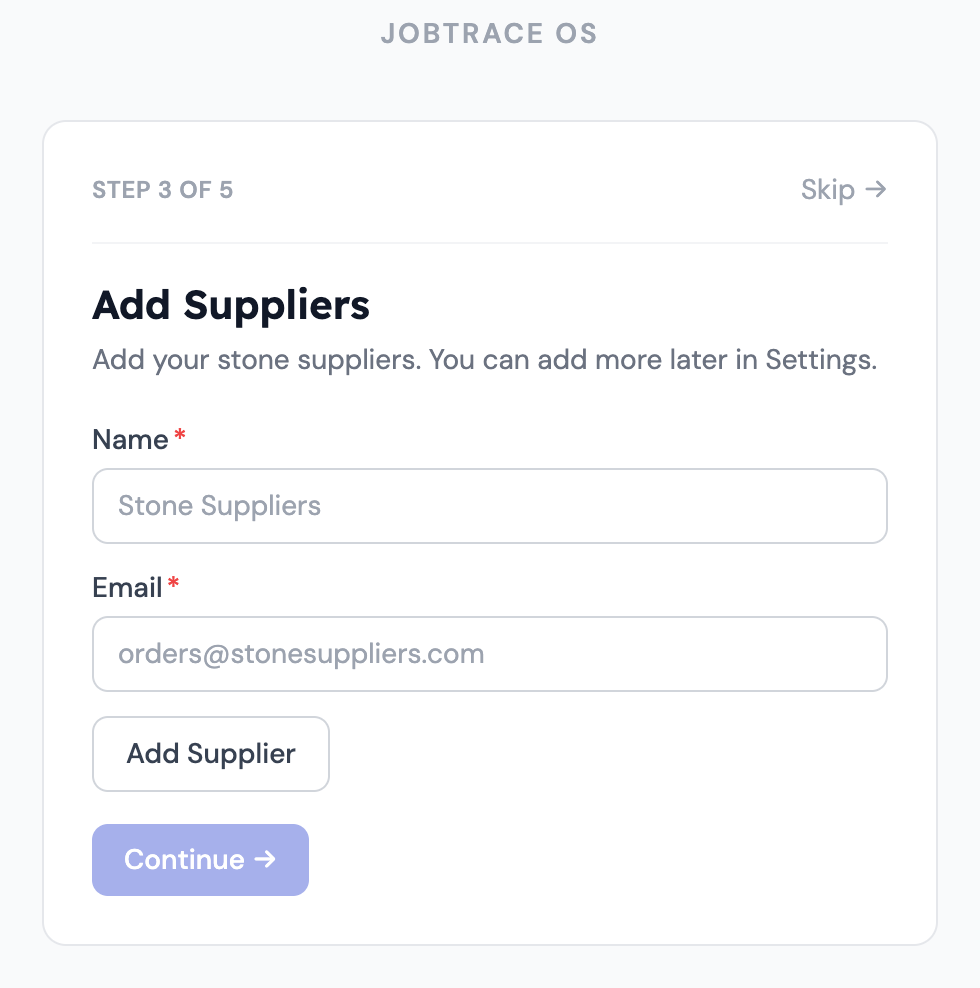
Suppliers are your stone and material vendors. JobTrace OS sends hold request emails to them when you're ready to release materials for a job.
For each supplier, enter:
- Name — the company name
- Email — where hold requests will be sent Click Add Supplier after each one, then Continue when your list is complete.
▎ Tip: You can always add more suppliers later in Settings → Suppliers.
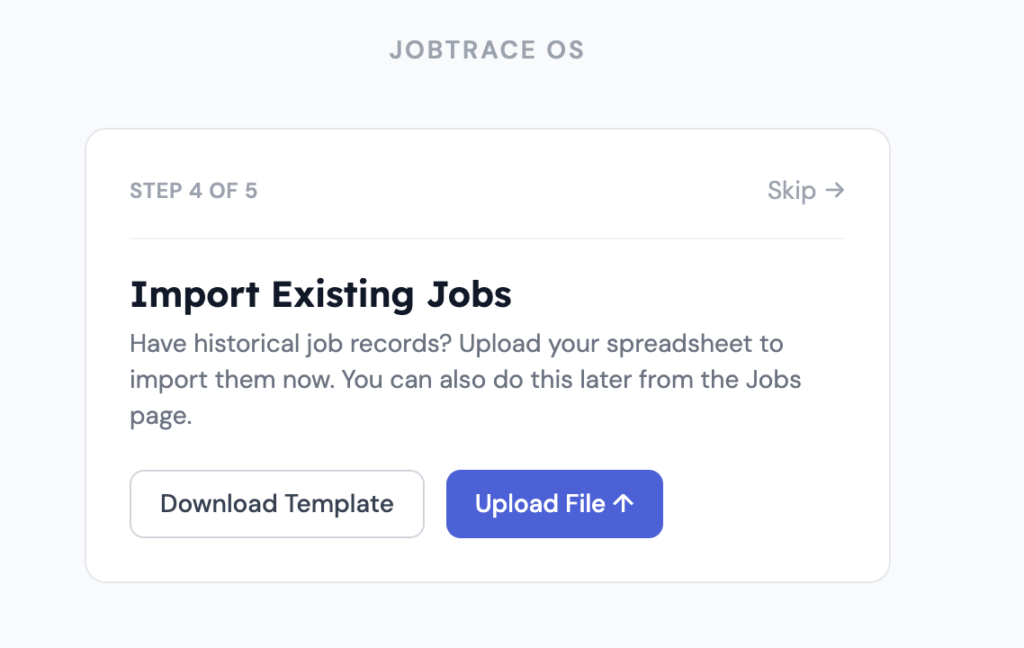
Step 5 — Import existing jobs (Step 3 of 5)
If you have existing job records in a spreadsheet, you can import them now so your history is in the system from day one.
To import:
- Click Download Template to get the JobTrace OS import spreadsheet
- Fill in your existing jobs — one row per job
- Click Upload File and select your completed .xlsx file
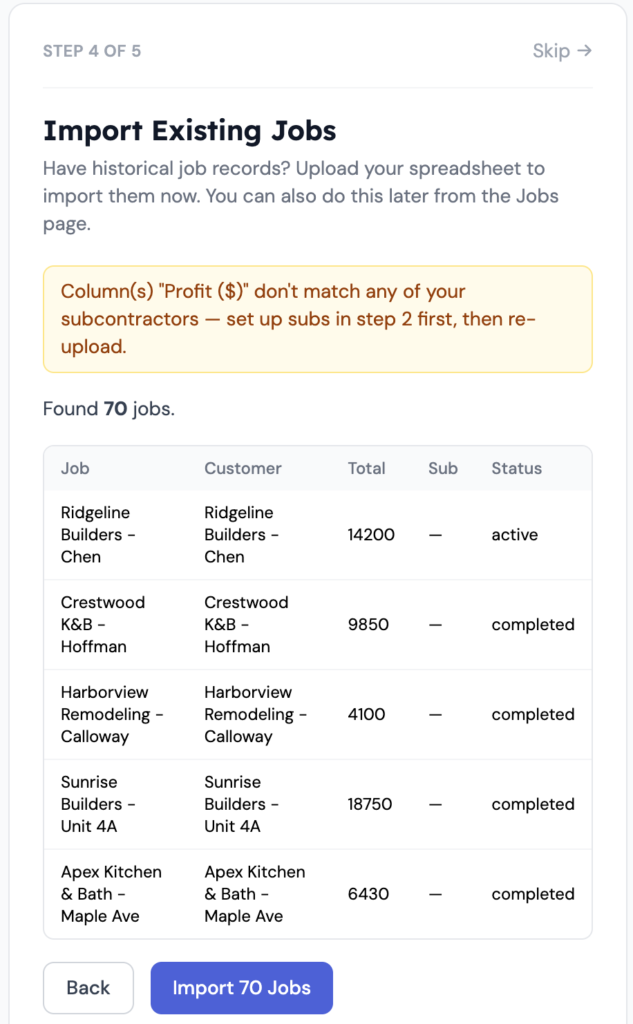
- Review the preview — JobTrace OS will show you the first few rows and flag any issues
- Click Import to bring your jobs in.
▎ Columns in the template include: Job Name, Customer Name, Address, Status, Install Date, Template Date, Subcontractor, Supplier, and financial fields. Any subcontractor columns must match the names you entered in Step 3 — if they don't match, the import will flag them. If you don't have existing jobs to import, click Skip to continue.
Step 6 — Invite your team (Step 4 of 5)
Add the people who will use JobTrace OS with you. Each person gets an email invitation with a link to create their account.
For each team member, enter their email address and choose a role:
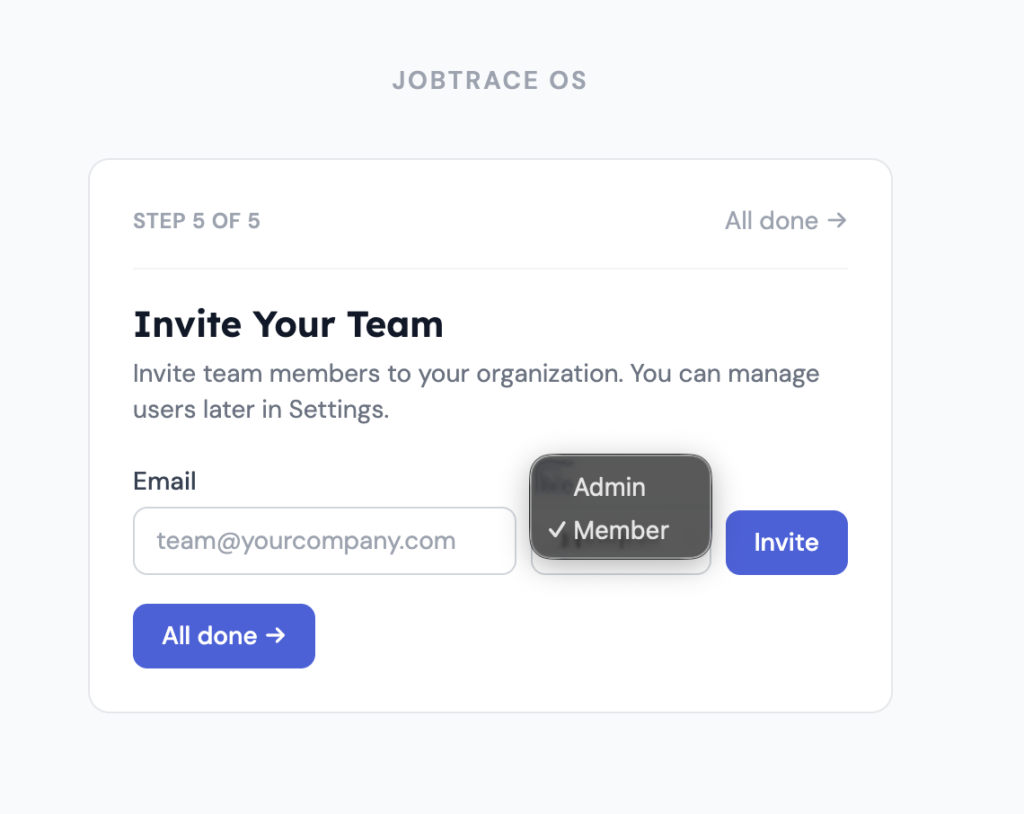
Click Invite after each person. When your list is complete, click All done.
▎ Your own account is set as Owner automatically. You can manage roles and add more users anytime in Settings → Users.
You're in. Here's what's next.
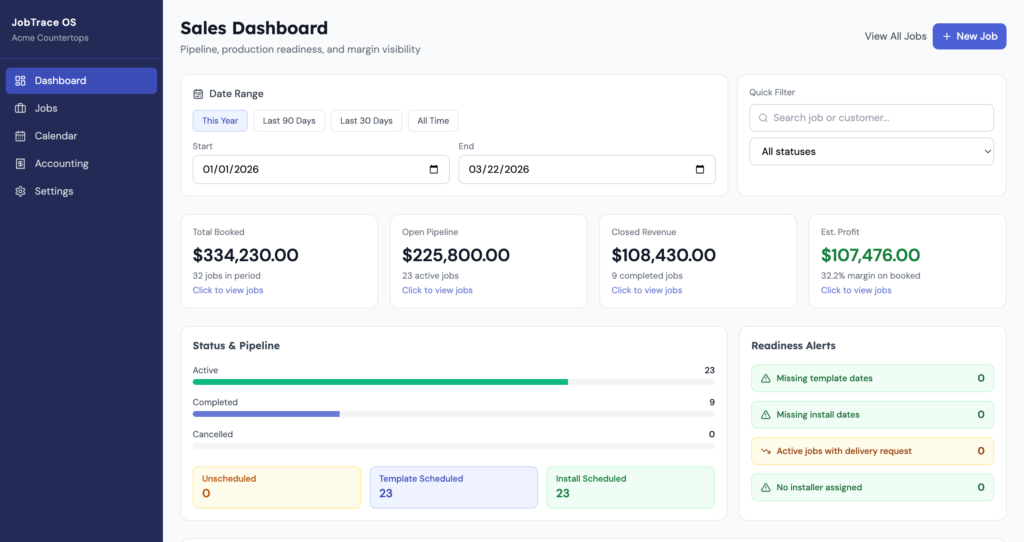
After setup, you'll land on the Dashboard — an overview of all your active jobs, upcoming installs, and financials at a glance.
Create your first job
Click New Job in the left sidebar to open the job creation wizard. It walks you through:
- Job name — e.g., "Smith Kitchen Remodel"
- Customer info — name, email, phone, and jobsite address
- Hold request details — the material info you'll send your supplier when you're ready
- Labor and subcontractors — assign subcontractors and enter their costs
- Financials — job total, deposit received, and margin tracking
- Notes — any internal notes for the job
- Scheduling — template date and install date
Once created, the job is live and your whole team can see it.
Send a hold request: When you're ready to release materials for a job, open the job and go to the Materials tab. Click Send Hold Reques. JobTrace OS will email your supplier with the job details, material specs, and delivery information automatically.
Assign a subcontractor: On any job, go to the Materials tab and select the subcontractor(s) responsible for the work. Click Send Work Order to email them the job details.
Track job status: Jobs move through statuses as work progresses. You can update the status from the job detail page at any time. Use the Calendar view in the left sidebar to see all scheduled jobs by date.
Settings to configure before you go live
Before your first real job, check these settings:
- Settings → Email — customize the hold request and work order email templates with your shop's branding and standard language
- Settings → Subcontractors — verify delivery addresses are correct for any subs that receive material drops
- Settings → Suppliers — confirm supplier emails are correct
Need help?
Email us at support@getjobtrace.com — we're happy to walk through anything with you.
Was this article helpful?
That’s Great!
Thank you for your feedback
Sorry! We couldn't be helpful
Thank you for your feedback
Feedback sent
We appreciate your effort and will try to fix the article